
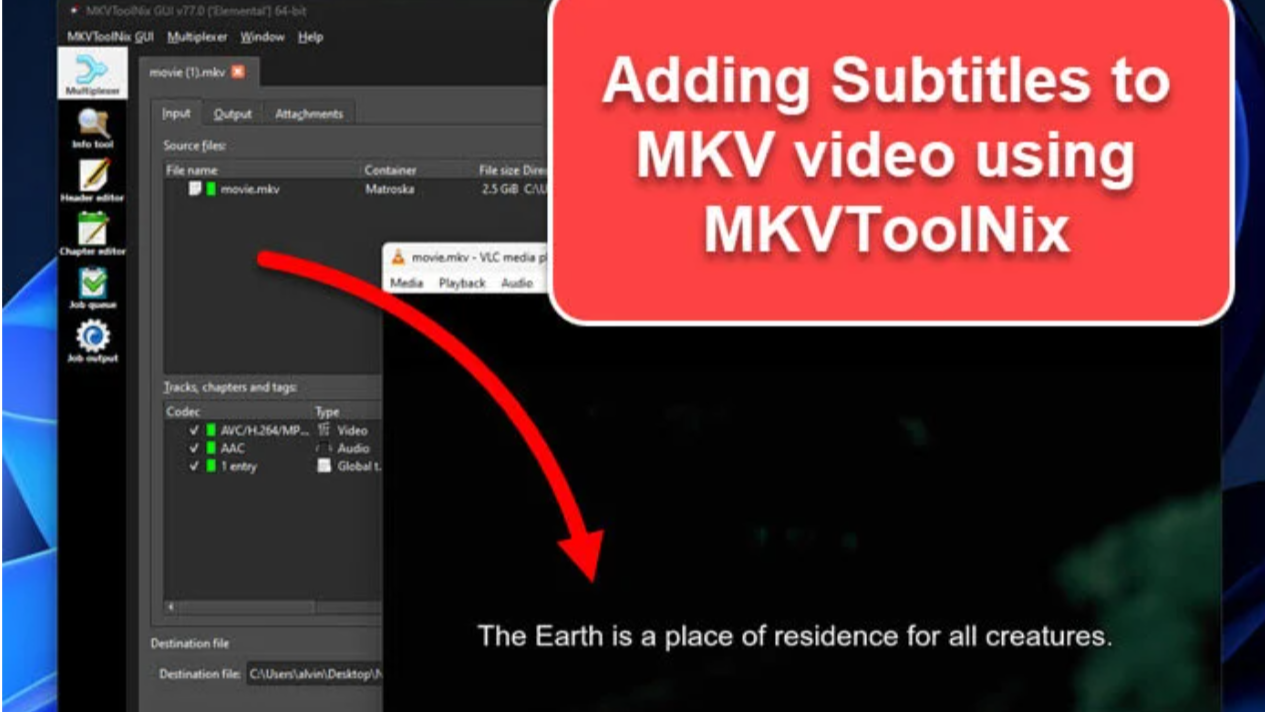
Want to put your video, audio, and text (subtitles) together into a single file that plays smoothly? The MKVToolNix merge guide shows you exactly how to do that. Using a friendly tool called MKVToolNix, you can mix all your media tracks into one MKV file—without losing quality. This guide walks you through it step by step, with clear examples and helpful tips.
What Is MKV and Why It’s Useful
MKV (Matroska) is a type of file that can hold video, multiple soundtracks, subtitles, and even chapters—all in one place. It’s like a digital box that holds all the parts of your video together.
MKVToolNix is a free, open-source toolset you can use to create, edit, and manage MKV files. It works on Windows, Mac, and Linux.
Why Merge Files into an MKV?
- All parts in one file: Keep video, audio, and subtitles together.
- High quality kept intact: The original picture and sound aren’t changed.
- Flexible playback: Choose which audio or subtitle to play when watching.
- Lightweight and efficient: Fast operations, even with large files.
Tools You Can Use
Here’s a quick comparison of common tools for merging videos:
| Tool | Ease of Use | Quality Control |
|---|---|---|
| MKVToolNix | Beginner-friendly GUI + advanced options | No re-encoding, keeps quality |
| FFmpeg | Command-line expert level | Full control, but harder to use |
| Others | Less ideal (like VLC, Bandicut) | May re-encode or have limits |
Step-by-Step: Using MKVToolNix (GUI)
Step-by-Step Guide to Merge Files
- Download and install MKVToolNix from its official site.
- Open the MKVToolNix GUI.
- Add your files:
- Click “Add Source Files”.
- Choose your video, audio, and subtitle files.
- Select track options:
- Ensure the right tracks are checked for inclusion.
- Mark defaults if needed (e.g., default audio or subtitle).
- Start merging:
- Click “Start Muxing” (or “Start Multiplexing”).
- The program creates your new MKV file with all tracks included.
You can also append files—like joining two video parts—by dragging the second file and choosing “Append to existing source” when prompted.
Advanced Tips & Tricks
- Handling many files at once: The GUI can merge multiple files if you add them carefully. Look for settings under Preferences → Multiplexer → “Detect file name sequences” to avoid unwanted grouping.
- Manual batch processing: For power users, scripting with
mkvmergein a shell like bash makes it easy to batch-mux many files. - Ensure file compatibility: When appending, both files should have the same video resolution, codecs, and frame rate—otherwise, joining may fail.
What If Things Don’t Sync?
- Out-of-sync audio/subtitles? You can adjust delays or time offsets with
ffmpegor editing tools. - Errors or failed merges? Make sure no files are locked or corrupted. Try using MKVExtract to isolate problem tracks.
Extra Things You Can Do with MKVToolNix
- Add chapters for easy navigation between scenes.
- Edit metadata, like titles or language tags for tracks.
- Extract tracks using MKVExtract.
- Check tracks and codecs with MKVInfo.
- Edit existing properties with mkvpropedit.
Frequently Asked Questions (FAQ)
Q: Is MKVToolNix free?
A: Yes, it’s completely free and open-source.
Q: Which platforms can I install it on?
A: It works on Windows, macOS, and Linux.
Q: Can I keep subtitles in multiple languages?
A: Absolutely! Just include each subtitle track when merging.
Q: Can I merge video parts into one movie?
A: Yes—use “Append files” in the GUI. Just make sure the parts match in format.
Q: What if MKVToolNix groups my files wrongly?
A: Turn off “Detect file name sequences” in preferences under Multiplexer.
Merging video, audio, and subtitles into one MKV file with MKVToolNix is powerful, easy, and keeps your media high quality. Whether you’re a beginner using the GUI or an advanced user scripting commands, this tool makes media management smoother and more flexible. Get started today—your videos will be cleaner, smarter, and easier to share.
