
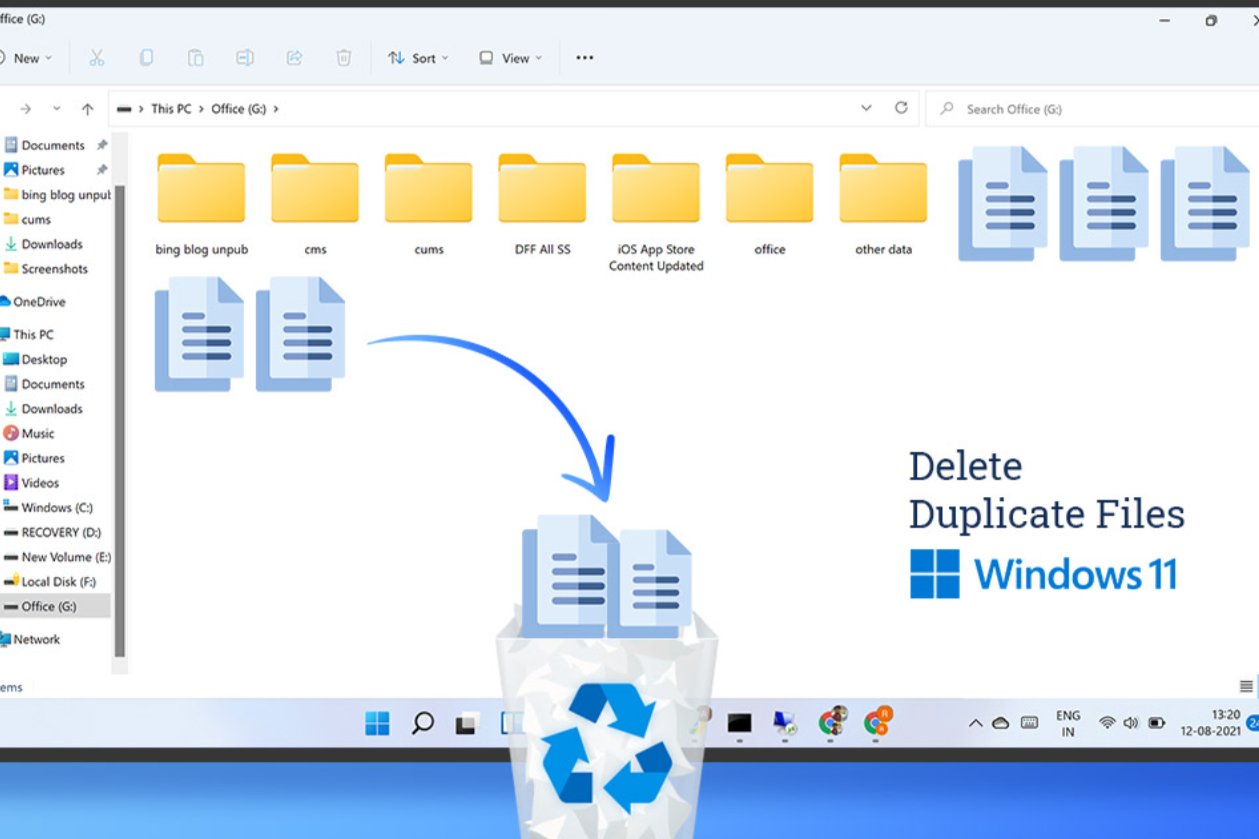
Ever feel like your computer has grown three times bigger overnight? It’s probably full of duplicate files—copies hiding among your stuff, stealing storage and slowing things down. But don’t worry! Today, we’re going to clean that up together in a fun and easy way.
Table of Contents
- Why Duplicates Matter
- Easy Prep: Organize Before You Clean
- Built-In Windows Tools (No Download Needed!)
- Manual Search in File Explorer
- PowerShell for Advanced Users
- Better Option: Strong and Safe Third-Party Tools
- FAQ: Questions You Might Be Asking
- Extra Tips to Keep Your PC Clean
- Wrap-Up & Next Steps
Why Duplicate Files Matter
Duplicate files can cause several headaches:
- Wasted storage space — Especially if they’re big media files.
- Slower computer performance — More files mean longer searches and slower apps.
- Confusion — Which version of my file is the real one?
- Backup trouble — You might be backing up stuff you don’t even need.
By removing duplicates, you’ll free up space, speed up your PC, and make your files easier to manage.
Easy Prep: Organize Before You Clean
Before diving in, take a few minutes to tidy up:
- Sort files into folders like Documents, Music, Photos, Videos, etc.
- Use clear names like
Homework_Math.pdforHolidayPhoto1.jpg. - Delete obvious duplicates (like that file with “copy” in the name).
This setup makes everything smoother when scanning for duplicates later.
Built-In Windows Tools (No Download Needed!)
If you don’t want extra apps, here’s how to use Windows tools:
A. Manual Search in File Explorer
- Open File Explorer and go to the folder you want to check.
- In the search box, type terms like
name:*copy*,kind:=picture, orkind:=document. - Sort by Name, Size, or Date Modified and look for duplicates.
- Delete duplicates you’re sure about.
Note: This works for small folders but can be slow if you have lots of files.
B. PowerShell (For More Precise Cleanup)
- Right-click the Start button and choose Windows PowerShell (Admin).
- Paste this code (change
"C:\YourFolder"to the folder you want to scan):
Get-ChildItem -Path "C:\YourFolder" -Recurse |
  Where-Object { !$_.PSIsContainer } |
  Group-Object -Property Length |
  Where-Object { $_.Count -gt 1 } |
  ForEach-Object {
    $_.Group | Get-FileHash |
      Group-Object -Property Hash |
      Where-Object { $_.Count -gt 1 } |
      ForEach-Object { $_.Group }
  }
This script groups files by size, then checks hashes (unique codes) to spot real duplicates.
Better Option: Strong and Safe Third-Party Tools
Want something faster and easier than manual cleanup? Here are your best options:
Duplicate Cleaner (Windows Only)
- Finds and removes duplicates in documents, photos, music, videos, and folders.
- Works even if the photos are altered (rotated or resized) and helps you pick which copy to keep.
- Offers a trial with helpful features and safeguards to keep important files safe.
EaseUS DupFiles Cleaner
- Scans all file types quickly.
- Works on external drives, too.
- Offers both a free version and a pro version with extra features like one-click deletion and tech support.
These tools are a super-friendly, safe way to clean your PC without risking accidental deletes.
Frequently Asked Questions
Q: Is it safe to delete duplicate files automatically?
A: Only if you’re confident — always double-check before deleting! Preview files and empty the Recycle Bin carefully.
Q: Should I use file names or file hashes for detection?
A: Hashes (like MD5 or SHA1) are more accurate. They check the actual content, not just the name.
Q: Are there free tools to search for files and duplicates?
A: Yes! Tools like Everything, Duplicate File Finder, and SearchMyFiles help you search and clean up quickly.
Extra Tips to Keep Your PC Clean
- Run a scan once a month to catch new duplicates.
- Back up files before deleting — just in case.
- Clean up completed projects or old downloads regularly.
- Keep a clear folder system and avoid saving duplicate files whenever you copy/rename.
Wrap-Up & Next Steps
Duplicate files can sneak in and slow you down—but now you’ve got a friendly plan to tackle them. Whether you choose built-in tools or third-party apps, you’re ready to clean your PC like a pro.
Here’s what to do now:
- Organize your files into clear folders.
- Try a quick manual search or PowerShell scan.
- For faster cleanup, use tools like Duplicate Cleaner or EaseUS DupFiles Cleaner.
- Keep your files tidy and run cleanups regularly.
You’ve got this! A clutter-free PC means faster performance and more free space for everything that matters.
