
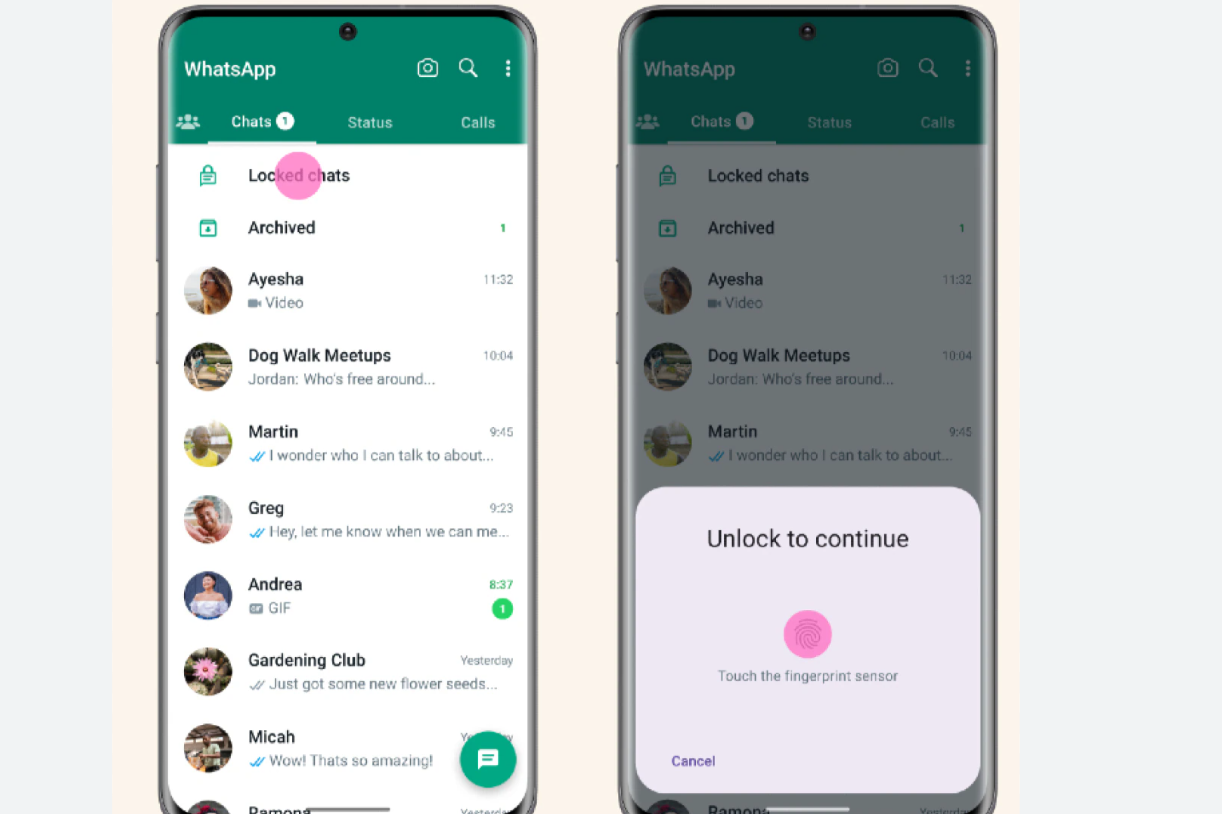
Imagine your WhatsApp chats are like a private diary. Wouldn’t it be great if only you had a key to open it? That’s exactly what WhatsApp’s Chat Lock does. It hides your chosen chats in a secret folder that only you can open—using your fingerprint, Face ID, or a secret code. This guide will walk you through everything you need to know, step by step, in a friendly way you’ll love.
Why Use Chat Lock?
- Extra Layer of Privacy
Even if someone opens your phone, they can’t see the locked chats—just “WhatsApp: 1 new message.” - Lock Only What You Want
You can lock just one chat or group without locking the whole app. - Hidden Chats Stay Hidden
When using the secret code, the Locked Chats folder doesn’t even show up—unless you type the code in the search bar.
How to Lock a Chat on WhatsApp
On Android
- Open WhatsApp and go to Chats.
- Long-press the chat you want to lock.
- Tap the three-dot menu and select Chat Lock.
- Choose to lock using your fingerprint or a passcode.
- Your chat moves into the Locked Chats folder.
On iPhone
- Open the chat you want to lock.
- Tap the contact or group name at the top.
- Scroll down and tap Chat Lock.
- Turn on Face ID or Touch ID.
- Now the chat is hidden inside Locked Chats.
How to See Your Locked Chats
- Go to the main Chats tab.
- Swipe down—you’ll see a Locked Chats folder appear.
- Tap it, then unlock it using your fingerprint, Face ID, or passcode.
- You can now read or reply as usual
Want to Hide the Locked Chats Folder?
Great idea. This makes the Locked Chats folder invisible unless you enter your secret code:
- Swipe down and open the Locked Chats folder.
- Tap the three-dot settings icon inside.
- Go to Chat Lock settings and set a Secret Code, like words or emojis.
- Turn on Hide Locked Chats.
- Now, the Locked Chats folder only shows up if you type that code into the search bar.
Quick Steps at a Glance
- Choose the chat → use Chat Lock.
- Open folder by swiping down → unlock to access chat.
- (Optional) Set a secret code → hide the folder.
Real-Life Examples
- Surprise Chat Planning
Want to hide messages about a surprise gift? Lock that chat so even friends who borrow your phone won’t see it. - Private Group Chat
Lock your study or family group so nobody but you can peek in during busy times. - Work Messages
Shield sensitive messages from coworkers when you’re in public or sharing your phone.
FAQs
Do notifications still show up for locked chats?
Yes. But they’re discreet. Instead of showing message previews or names, they just say “WhatsApp: 1 new message.”
Will locked chats stay locked if I switch phones?
Yes. If you back up and restore your chats on a new phone, the locked chats stay locked—just make sure you’ve enabled device authentication.
What if I want to unlock a chat later?
Open the Locked Chats folder, choose the chat, tap its info or menu, select “Unlock Chat,” then authenticate. It moves back to your main list.
What if I forget my secret code?
You’ll need to reset chat lock settings in your privacy menu, which will remove the code and unlock your chats.
Can group chats be locked too?
Yes, group chats can be locked just like one-on-one chats.
Tech Notes: How It Works Behind the Scenes
- WhatsApp includes built-in security that’s powered by end-to-end encryption—only you and the chat partner(s) can read your messages.
- Chat Lock hides chats, locks them with biometrics or codes, and keeps notifications low-key.
- Using the secret code hides the Locked Chats folder entirely, unless you search that code.
Take Control of Your Privacy
You don’t have to hide behind technology—just use it smartly. WhatsApp Chat Lock helps you keep your private conversations private. Whether it’s personal messages, work talks, or surprise plans, Chat Lock gives you power over what others see. You’re the boss of your chats.
Take action now: try locking one chat today. Explore the secret code option if you want your private messages to stay truly hidden. Your privacy is worth protecting—start today.
