
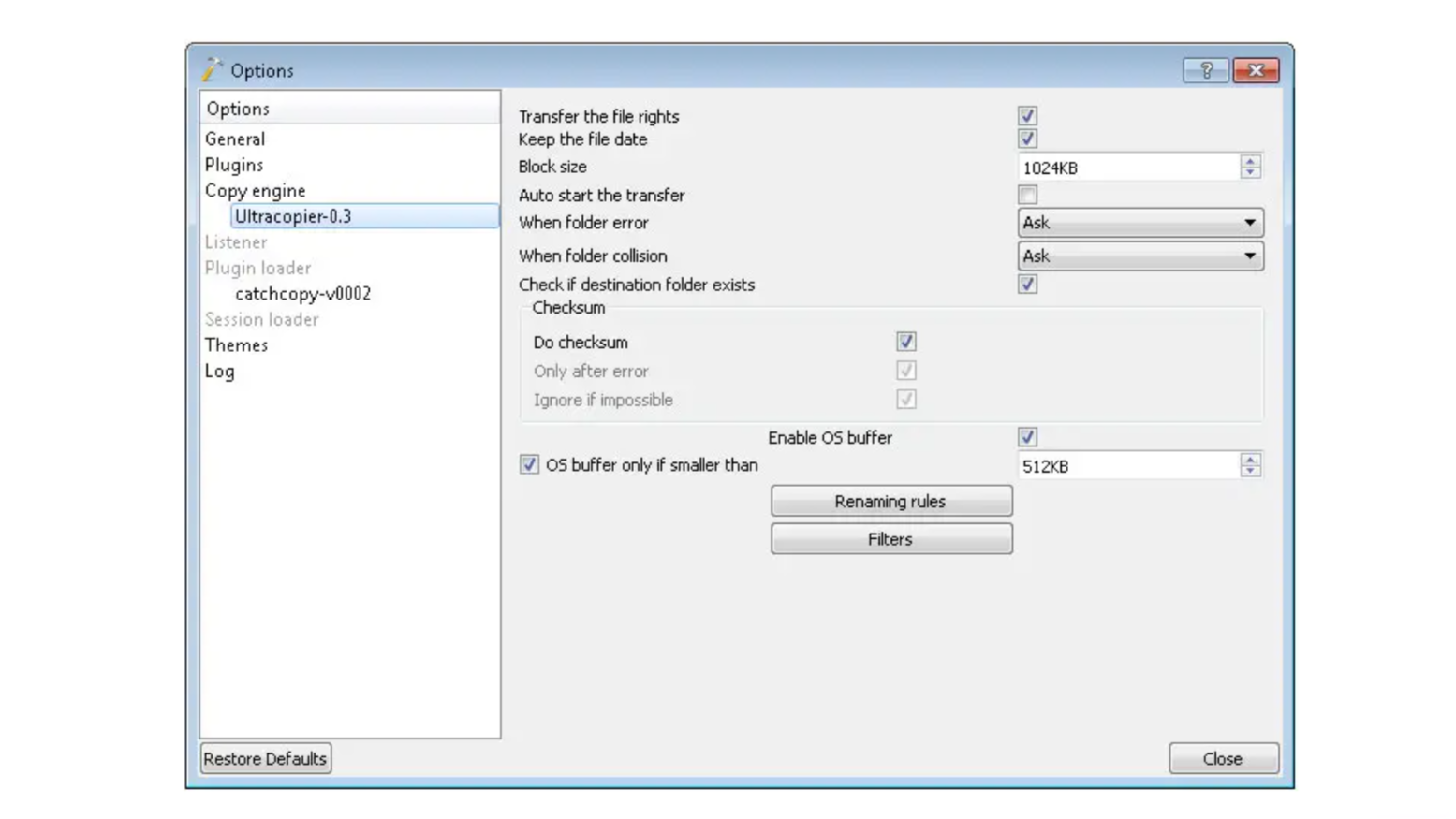
Have you ever watched your computer drag when copying files and wished for a fast, smart helper? That’s where SuperCopier comes in. It’s a free tool for Windows that makes copying files smooth, quick, and under control. This guide breaks down how it works, what makes it special, and how it compares—so even beginners can understand.
What Is SuperCopier?
SuperCopier is a free, open-source tool for Windows licensed under GPL-3. It replaces the regular copy dialog with something smarter and more powerful. With SuperCopier, you can pause and resume transfers, limit speed, and manage situations like errors or duplicate files.
Key Features at a Glance
- Pause and resume transfers whenever you like
- Set a speed limit so your system stays responsive
- Recover from errors—stop, retry, or skip problem files
- Handle file conflicts with clear options about overwriting or renaming
Why Use It Instead of Windows Copy?
The normal Windows copy can be slow and unpredictable—especially with big batches. SuperCopier gives you control and peace of mind. You get:
- Better speed control
- Fewer transfer crashes
- Clean conflict management
That means smoother, faster file moving—without the fuss.
Alternatives: Strong Options Worth Comparing
It’s smart to know your options. Here are some good alternatives:
TeraCopy
- Freemium tool known for verifying file integrity with hashes
- Skips bad files instead of stopping the whole process
- Handles errors well and keeps things moving
Ultracopier
- Built from the same base—modern version of SuperCopier
- Available on Windows, macOS, and Linux
- Offers themes, plugins, error handling, speed limits, and more custom options
FastCopy
- Super quick and super lean
- Updated recently (as of May 2025) with modern improvements
- Great if you want fastest file moves without extra features
Robocopy (for advanced users)
- Built into Windows from Vista on and designed for the serious stuff
- Works via command line, and can mirror folders, skip duplicates, and retry operations
- Powerful—but needs tech comfort and commands
What Do Real Users Say?
Over on Reddit, folks share smart tips:
“If you are looking just for a file transferring software then use TeraCopy, SuperCopier, FastCopy, RoboCopier.
That shows SuperCopier is in good company, trusted as a reliable helper.
Quick Comparison Table
| Tool | Pros | Best For |
|---|---|---|
| SuperCopier | Free, pause/resume, error control | Easy, everyday Windows file copies |
| TeraCopy | File verification, skips errors | Ensuring accuracy and speed |
| Ultracopier | Cross-platform, customizable | Advanced users wanting tweaks |
| FastCopy | Lightweight, blazing speed | Large transfers, minimal fuss |
| Robocopy | Deep control, scripting power | Tech-savvy users managing servers |
Frequently Asked Questions
What versions of Windows does SuperCopier support?
It works on most Windows versions, including Windows 10 and earlier.
Can I use SuperCopier if I need to copy large files often?
Absolutely. Its ability to pause, resume, and limit speed makes it a great choice for big file jobs.
Is Ultracopier better than SuperCopier?
Ultracopier is more up-to-date and works on more platforms, but both are solid for Windows users.
Are these tools free?
Yes, SuperCopier, Ultracopier, and FastCopy are free. TeraCopy offers optional premium features.
Simple. Smart. Speedy.
If you’re tired of slow file moves or copy errors, SuperCopier is a friendly fix that gives you control and speed—for free. It’s a smart upgrade over the default tool. Need more power, features, or cross-platform support? Try TeraCopy, Ultracopier, or FastCopy.
Pick the tool that fits your needs, install it, and enjoy smoother, faster file transfers today!
