Close Menu

    Subscribe to Updates

    Get the latest creative news from FooBar about art, design and business.

    What's Hot

    Casino sicuri non AAMS: Come riconoscere un sito genuino

    May 20, 2026

    How to Repair Damaged PCB Pads: Jumper Wire and Solder Mask Curing Guide

    May 20, 2026

    AI Staffing Platform vs Traditional Recruitment Tech: A Complete Comparison

    May 20, 2026
    Facebook X (Twitter) Instagram
    • Privacy Policy
    • Disclaimer
    • Terms and Conditions
    Facebook X (Twitter) Instagram Pinterest VKontakte
    GeekMill
    • Technology
    • Apps
    • Artificial Intelligence
    • Computers
    • Gadgets
    • Gaming
    • Make Money Online
    GeekMill
    Home»Blog»Adjust Brightness on an External Monitor: Easy Steps and FAQs
    Blog

    Adjust Brightness on an External Monitor: Easy Steps and FAQs

    Mr yousafBy Mr yousafAugust 23, 2025
    Facebook Twitter Pinterest LinkedIn Tumblr Email
    Share
    Facebook Twitter LinkedIn Pinterest Email

    Ever squint at your computer because the screen is too bright—or can’t see anything because it’s too dim? Getting the right brightness on your external monitor can stop eye strain, help you focus, and even save power. This guide shows you clear, step-by-step ways to adjust brightness—using buttons, software, and helpful tools—so your screen looks just right no matter where you are.

    1. Use the Built-In Controls on Your Monitor

    Most external monitors have buttons or a small joystick on the side, bottom, or front.

    How to do it:

    1. Press the Menu or OSD (On-Screen Display) button.
    2. Navigate to Brightness (sometimes with Contrast or other settings).
    3. Use arrows or the joystick to raise or lower brightness.
    4. Press Apply or wait until it saves automatically.

    Why it works: This is the most reliable way because the monitor controls itself directly.

    Control Brightness via Graphics Software

    If you’re connected through HDMI, DisplayPort, or USB-C, some graphics card software lets you adjust brightness—even if your monitor doesn’t have easy buttons.

    • NVIDIA: Open the NVIDIA Control Panel, go to Adjust desktop color settings, use the Brightness slider, and click Apply. You can also tweak contrast, gamma, and color intensity (Digital Vibrance).
    • AMD: Go to AMD Radeon Software > Display tab > activate Custom Color, then adjust brightness and contrast, and click Apply, plus explore extras like Radeon Boost.
    • Intel: Open Intel Graphics Command Center, find Display > Color Settings, adjust brightness, and click Apply. There’s also Power Saving Mode and HDR Mode to check out.

    ry Software Tools That Use DDC/CI

    Some monitors accept software brightness control through a protocol called DDC/CI.

    What is DDC/CI?

    It’s a communication language between your computer and monitor that lets software control settings like brightness and contrast.

    Tools for Windows:

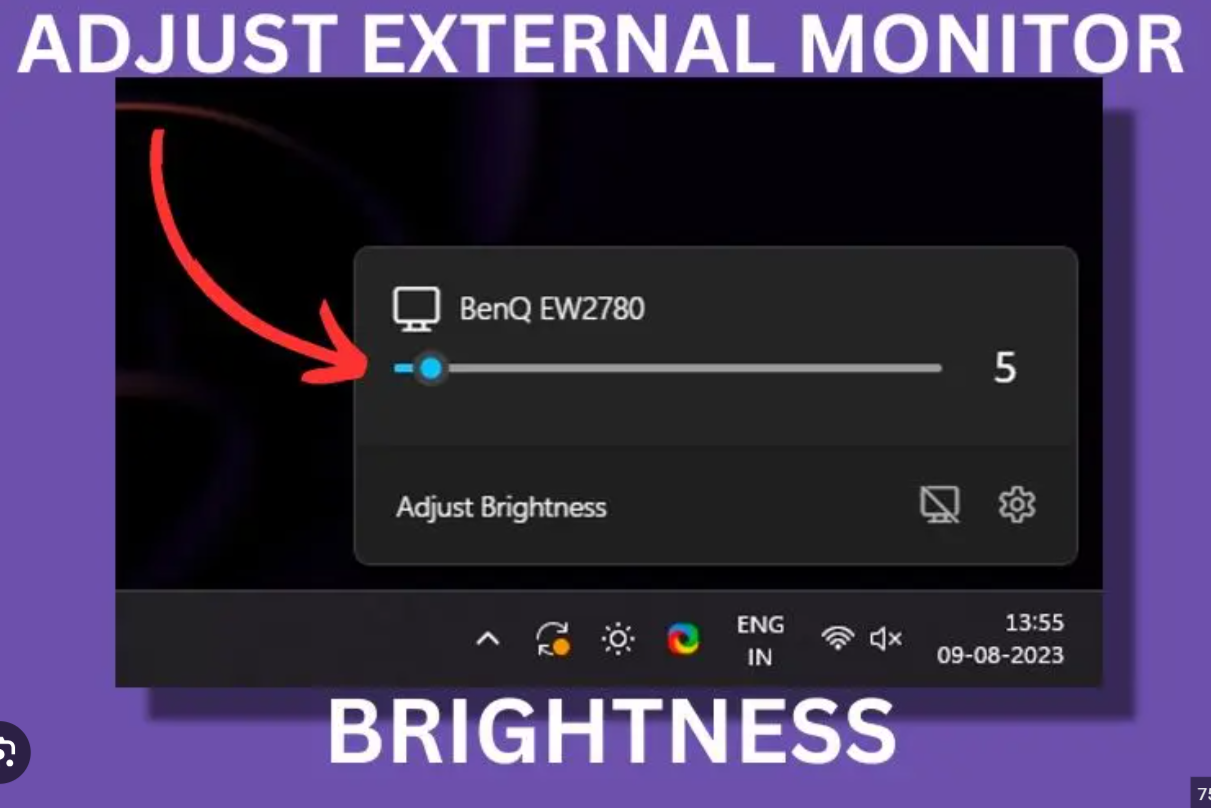
    • Monitorian, Twinkle Tray, or other apps let you slide brightness right from your taskbar.

    Tools for macOS:

    • MonitorControl lets Mac users adjust brightness using F1/F2 keys or a menu bar slider.
    • Lunar allows advanced control like syncing brightness, adaptive lighting, “FaceLight” for video calls, and dimming below zero.

    When Brightness Controls Don’t Work — Troubleshooting

    • Buttons don’t do anything? Make sure the monitor is powered and not locked. Try powering it off and on, updating firmware, or testing with another device.
    • Brightness slider is grayed out? In your monitor’s OSD menu, enable DDC/CI and update your graphics drivers.
    • Screen is too bright or dim? Disable Adaptive Brightness on your computer (both Windows and macOS have this setting). On Windows, also turn off Eco Mode or any automatic features.
    • Still strange visuals? On Mac, check System Settings > Displays > Color Profile to ensure color settings aren’t causing brightness issues.

    Extra Tips: Smart Screen Brightness

    • Automatic Brightness on Windows: Turn on Change brightness automatically when lighting changes in Display settings or Power Options.
    • macOS Auto Brightness: Go to System Settings > Displays, and check Automatically adjust brightness. Also consider enabling True Tone for natural light matching.
    • Night Light and Color Warmth: On Windows, this feature eases eye strain by reducing blue light; toggle it from quick settings or schedule it.

    Bonus Method—Make It Feel Brighter Without Changing Settings

    Programs like f.lux or Night Light don’t adjust brightness directly but shift your screen to warmer tones—easier on your eyes at night.

    FAQs – Quick Answers

    Can I adjust brightness on any monitor from my computer?
    Only if the monitor supports DDC/CI. If it doesn’t, you’ll need to use buttons or buy a compatible adapter.

    Why can’t I use the F1/F2 keys for third-party monitors on Mac?
    Apple only supports that on their own displays. For others, use MonitorControl, Lunar, or similar tools.

    Where do I find brightness sliders on Windows with an external monitor?
    They usually don’t appear. You’ll need to use monitor buttons or install a third-party tool like Monitorian.

    Adjusting brightness on an external monitor doesn’t have to be frustrating. Start with your monitor’s buttons, then explore graphics software or DDC/CI tools if needed. Know the smart settings and which tools work on Windows or macOS. That way, you’ll get a comfy, clear display that fits your environment.

    Share. Facebook Twitter Pinterest LinkedIn Tumblr Email
    Mr yousaf

    Related Posts

    How to Repair Damaged PCB Pads: Jumper Wire and Solder Mask Curing Guide

    May 20, 2026

    AI Staffing Platform vs Traditional Recruitment Tech: A Complete Comparison

    May 20, 2026

    How Sunwin Online Games Deliver Fast Payouts and Real Winning Chances

    May 20, 2026

    Sunwin International Sports Betting Platform For Players

    May 19, 2026
    Add A Comment

    Comments are closed.

    Related Posts

    How to Repair Damaged PCB Pads: Jumper Wire and Solder Mask Curing Guide

    By Alfa Team

    AI Staffing Platform vs Traditional Recruitment Tech: A Complete Comparison

    By Editorial Team

    How Sunwin Online Games Deliver Fast Payouts and Real Winning Chances

    By Alfa Team
    Latest Posts

    Casino sicuri non AAMS: Come riconoscere un sito genuino

    May 20, 2026

    How to Repair Damaged PCB Pads: Jumper Wire and Solder Mask Curing Guide

    May 20, 2026

    AI Staffing Platform vs Traditional Recruitment Tech: A Complete Comparison

    May 20, 2026

    How Sunwin Online Games Deliver Fast Payouts and Real Winning Chances

    May 20, 2026
    About Us

    GeekMill.com is a tech and AI blog delivering fresh takes on the latest trends and tools.
    From AI breakthroughs to coding tips, we break down complex topics into simple reads.
    Join a growing community of curious minds and stay ahead in the digital age.

    สล็อต | สล็อต | คาสิโนออนไลน์ | สล็อต | สล็อตเว็บตรง | สล็อตเว็บตรง | เสล็อต | สล็อตเว็บตรง| แทงหวย | แทงหวย24 | บาคาร่า | ดูบอลสด | เว็บตรง | สล็อตเว็บตรง | หวยออนไลน์ | บาคาร่า | Sunwin| UFA365 | แทงหวยออนไลน์ | สล็อต | Sun win | สล็อต | บาคาร่า | สล็อต | บาคาร่า | vegus24 | slot | UFABET | sanclub | AlgorynMunt Group | sadewa77 | | แทงบอล | ufa365 | UFABET | slot gacor | Ufabet | เว็บหวยออนไลน์ | Jun88 | สล็อต | ยูฟ่าเบท | บาคาร่าออนไลน์ | bk8 | sumvip | แทงหวย | https://kqbd.locker| https://b52club.trading | https://999bet.com.im/ | UFABET | แทงบอลโลก | ทดลองเล่นสล็อต| Ufabet | ufabet888 | f8bet | สล็อต | สล็อต | agen bola | WIN79 | 7m cn | 789club | สล็อตเว็บตรง | สล็อตเว็บตรง | Hitclub | Sunwin | jun88 | new88 | บาคาร่า | เว็บพนันออนไลน์ | สล็อต | tỷ lệ kèo | สล็อต | หวยออนไลน์ | สล็อตเว็บตรง | สล็อตเว็บตรง | Slot | top game bài đổi thưởng | ufabet | UFA365 | เว็บแทงบอล | บาคาร่า | เว็บหวยออนไลน์ | สล็อตวอเลท | บาคาร่า | แทงบอล | สล็อตเว็บตรง | สล็อตเว็บตรง | UFABET | สล็อตเว็บตรง | ufabet เข้าสู่ระบบ | betflix | ทางเข้าufabet | ufabet | ufa

    Related Posts
    • Casino sicuri non AAMS: Come riconoscere un sito genuino
    • How to Repair Damaged PCB Pads: Jumper Wire and Solder Mask Curing Guide
    • AI Staffing Platform vs Traditional Recruitment Tech: A Complete Comparison
    Get it Touch

    Have questions or ideas? Get in touch—we’d love to hear from you!

    Email: teclayers[@]gmail.com

    Address: 425 Market Street, Suite 900, San Francisco, CA 94105, USA

    Facebook Instagram Pinterest YouTube
    • Home
    • Privacy Policy
    • About Us
    • Disclaimer
    • Terms and Conditions
    • Contact Us
    © 2026 GeekMill | All Rights Reserved

    Type above and press Enter to search. Press Esc to cancel.