
Change Brightness on a Mac: A Simple, Step‑by‑Step Guide
Want your screen brighter for daylight or dimmer at night? This guide shows 9 easy ways to change brightness on a Mac, plus how to use auto‑brightness, True Tone, Night Shift, and external monitors. It’s written in clear, 8th‑grade level English so you can follow along fast.
Quick intent: Find a fast method to adjust Mac brightness for comfort, battery life, and eye health.
Works for MacBook and desktop Macs with Apple silicon or Intel.
At‑a‑Glance: Fastest Ways to Change Mac Brightness
- Use the F1/F2 brightness keys (or Touch Bar/keyboard icons).
- Drag the Brightness slider in System Settings › Displays.
- Slide Display in Control Center (menu bar).
- Turn on Automatically adjust brightness to let your Mac adapt to lighting.
- Use True Tone to match colors/brightness to your environment.
- Use Night Shift to warm colors at night (easier on eyes).
- Adjust external monitor brightness in its menu—or with a Mac app that talks DDC/CI (e.g., Lunar).
- Stop surprise dimming by changing Battery options.
- Try quick fixes if controls are grayed out or stuck.
What Is the Main Keyword?
- Main keyword: change brightness on a Mac
- Related phrases (useful for search): Mac brightness, adjust Mac brightness, auto brightness Mac, True Tone Mac, Night Shift Mac, external monitor brightness Mac, Control Center brightness, Display settings Mac
Why Screen Brightness Matters
A well‑set Mac brightness:
- Cuts eye strain
- Saves battery on MacBooks
- Improves readability indoors and outdoors
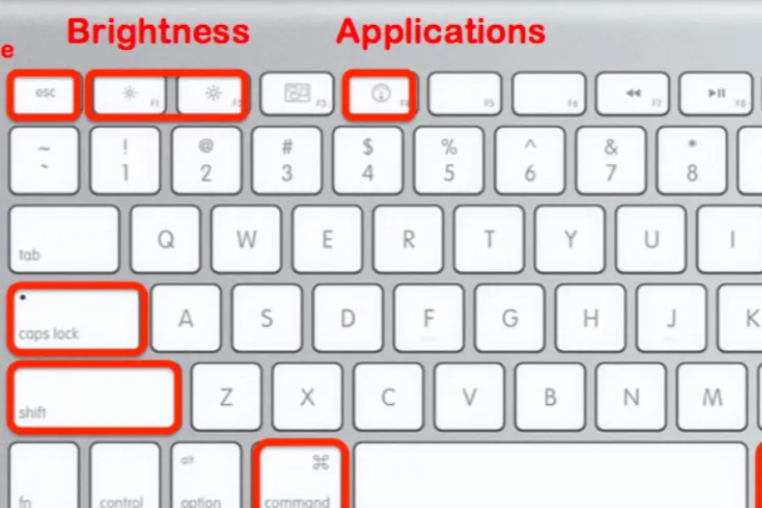
Use the Keyboard (F1/F2)
On most Mac keyboards, press F1 to dim and F2 to brighten. Tap for small steps; hold for larger jumps. If you have a Touch Bar or a compact keyboard, look for the brightness sun icons.
Tip: If your brightness keys do nothing, try Method 9 (fixes) below.
System Settings › Displays
- Click Apple menu › System Settings.
- Select Displays.
- Drag the Brightness slider left or right.
Good to know: Some displays also show Contrast or other options here.
Control Center (Menu Bar)
- Click Control Center in the menu bar.
- Drag the Display slider to adjust Mac brightness instantly.
- You can pin display controls to the menu bar for one‑click access.
Automatically Adjust Brightness
Let your Mac change brightness based on room light.
- Go to System Settings › Displays.
- Turn on Automatically adjust brightness.
- Works on Macs with an ambient light sensor.
If you don’t see the option: Your Mac/display may not support it. Just use the slider or keyboard.
True Tone (More Natural Colors)
True Tone adjusts color and brightness to match your environment, making whites look more “paper‑like.”
- Go to System Settings › Displays and toggle True Tone.
Note: Some users prefer it off for color‑critical work (photo/video).
Night Shift (Warmer at Night)
Night Shift shifts your screen toward warmer tones in the evening—easier on the eyes and less blue light.
- System Settings › Displays › Night Shift
- Set Schedule to Sunset to Sunrise or Custom.
Reminder: Night Shift changes color temperature, not the actual brightness. Use the slider or keys for brightness.
External Display Brightness (Monitors & TV)
Use the display’s own buttons/OSD
Most monitors need you to adjust brightness using their on‑screen display (OSD) or front/side buttons.
Control from macOS (when supported)
For some Apple keyboards/displays or supported monitors, you can also adjust brightness from System Settings › Displays or with the Brightness Up/Down keys.
Make it easy with DDC/CI apps
Apps like Lunar change hardware brightness on supported external monitors using DDC/CI—no overlay.
- Site: lunar.fyi (features like syncing brightness across displays)
- Tech: Lunar uses the DDC protocol instead of a software dim.
Pro tip: If the monitor doesn’t support DDC/CI, you’ll need its OSD controls.
Stop Surprise Dimming on Battery
If your screen dims only on battery, check this setting:
- System Settings › Battery › Options › turn off Slightly dim the display on battery power (wording may vary by macOS).
Troubleshooting When Brightness Won’t Change
Try these fixes if your Mac brightness is stuck, greyed out, or shows a lock:
- Restart your Mac. Quick, low‑risk fix.
- Update macOS to the latest version.
- Check Displays in System Settings—ensure Automatically adjust brightness isn’t conflicting with your manual setting.
- If keys show a lock or the slider is disabled, you may be hitting a system restriction or a software glitch—restart and recheck Displays settings.
- For external monitors, verify cables/inputs and try brightness via the monitor’s OSD.
Extra Tips for Comfort & Accessibility
- Use Dark Mode if bright UIs bother you at night.
- In Accessibility › Display, you can reduce motion, increase contrast, or apply color filters/tints to make the screen easier to see. These don’t change brightness, but they can improve comfort.
FAQ (Fresh, Less‑Common Questions)
1) Why does my Mac still change brightness even with auto‑brightness off?
Some users report auto adjustments continue due to other features or ambient sensing behavior. Double‑check Automatically adjust brightness is off, disable True Tone for testing, and review Battery settings. If it continues, update macOS and restart.
2) Can I sync my MacBook brightness with my external monitor?
Yes—with apps like Lunar that mirror internal display brightness to external monitors using DDC/CI. It even supports per‑monitor curves and shortcuts.
3) My brightness keys stopped working with my Apple Studio Display. What now?
Use Control Center or System Settings › Displays as a fallback. If keys used to work, check for recent updates or reconnect hardware.
4) Does Night Shift save battery?
Night Shift mainly warms color temperature; it doesn’t directly reduce brightness. Lowering Mac brightness saves more power.
5) I can’t find “Automatically adjust brightness.” Is my Mac broken?
Not all Macs/displays expose the option. If it’s missing, manually adjust with the slider or keys.
6) Which is better for eye comfort—True Tone or Night Shift?
They solve different problems: True Tone adapts color/brightness to the room; Night Shift warms colors at night. Many people use both, then fine‑tune Mac brightness with the slider.
Actionable Conclusion: Set It and Forget It
To change brightness on a Mac quickly, use the F1/F2 keys or the Control Center slider. For comfort all day, enable Automatically adjust brightness, try True Tone, and set Night Shift for evenings. If you use an external display, manage it via its OSD—or make it seamless with a DDC/CI app like Lunar. Your eyes (and battery) will thank you.
Skimmable Checklist (Copy & Keep)
- Keyboard: F1/F2 to dim/brighten.
- System Settings › Displays: Drag Brightness.
- Control Center: Slide Display. Pin it to the menu bar.
- Auto‑brightness: On/off in Displays (sensor required).
- True Tone / Night Shift: Toggle in Displays; schedule Night Shift.
- External monitor: Use OSD or Lunar (DDC/CI).
- Battery dimming: Disable “slightly dim on battery” if needed.
- If stuck: Restart, update macOS, recheck settings.
