
Screen Brightness Keeps Changing Automatically? Here’s the Simple Fix
Ever get frustrated when your screen suddenly gets too dim—or too bright—without asking?
It’s annoying and confusing. But the good news? You’re not alone, and it’s fixable. Let’s explore why this happens and how you can stop it right now.
What’s Causing the Brightness to Jump Around?
Here are the main reasons your screen may be adjusting itself—and what each means:
Automatic (Adaptive) Brightness
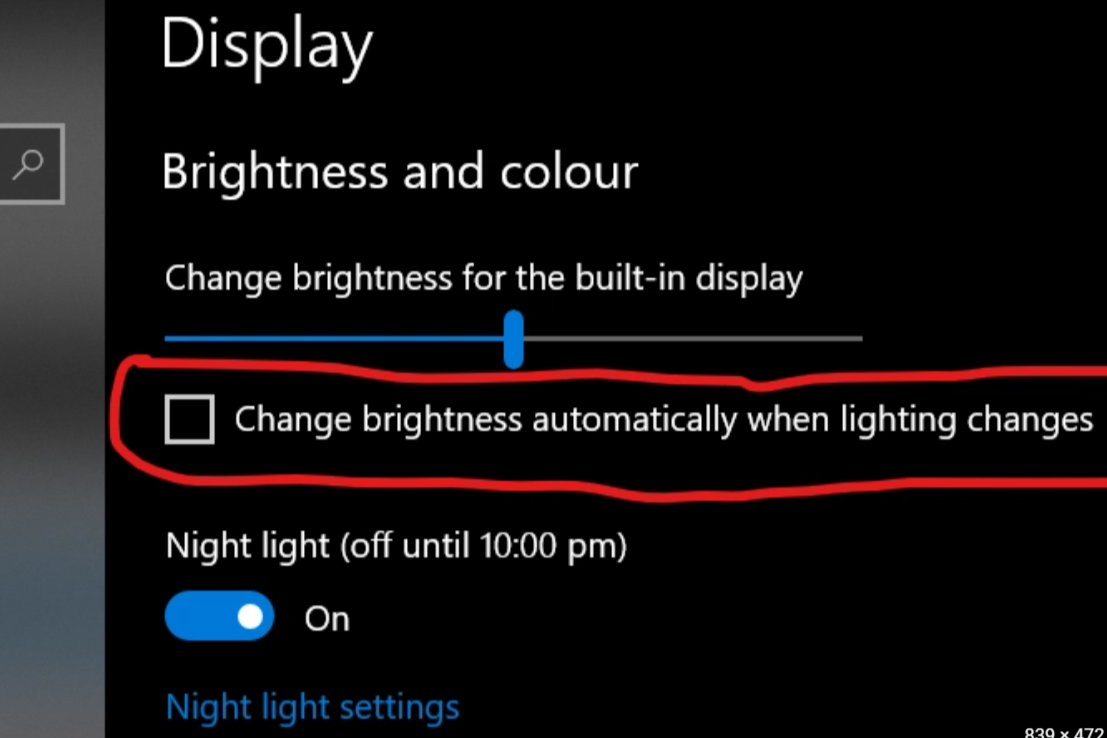
Your device may try to help by changing screen brightness based on light around you. In bright rooms, it ups the brightness; in dark spaces, it dims to rest your eyes and save battery. Windows, Mac, Android, and iOS all have this feature in different menus.
Power-Saving Modes
When your battery is low, saving energy becomes the priority—so the screen often gets dimmer even if you manually adjusted it. Hospitals, phones, and laptops may revert to these settings even after charging.
Display Power Saving or Content-Based Dimming
Some graphics tools (like Intel or AMD drivers) adjust your brightness based on what shows on the screen. This can look like a flicker or brightness change when switching apps.
Faulty Sensors or Dirty Screens
On devices with light sensors, dirt or smudges can fool the sensor into thinking the light around you has changed—resulting in odd brightness jumps.
HDR and Auto Color Features (Phones and Monitors)
Phones and monitors with HDR or True Tone may shift brightness based on lighting or content. That can cause changes even when auto-brightness is off.
How to Stop Your Screen from Changing Brightness on Its Own
Here’s how to fix things step by step:
A. Turn Off Auto Brightness
- Windows 11: Go to Settings > System > Display and turn off “Change brightness automatically when lighting changes” or similar options.
- Windows 10: Open Control Panel > Power Options > Change plan settings > Change advanced power settings. Then go to Display > Enable adaptive brightness and set both “On battery” and “Plugged in” to Off.
- macOS: In Display settings, uncheck Automatically adjust brightness.
- Android/iOS: In settings or accessibility, find and disable adaptive or auto-brightness.
B. Disable Graphics-Driven Brightness Controls
- Intel users: Open Intel Graphics Command Center, go to Power > On Battery, then turn off Display Power Savings. Or, in older control panel versions, disable Display Power-Saving Technology.
- AMD users: Open your Radeon settings and turn off features like Vari-bright or any auto-adjust options.
C. Adjust Power or Battery Settings
- Check Battery Saver or Low Power Mode—these often dim your screen. Disable any options that reduce brightness automatically.
D. Clean or Block Light Sensors
Make sure sensors near the front of your device are clean. If needed, position your device so that the sensor is obscured or shielded from light to avoid false readings.
E. Check HDR or True Tone Features
On phones or monitors:
- Turn off True Tone or HDR auto-adjust settings to keep brightness steady.
Real-World Tips & Examples
- A Reddit user fixed flickering brightness in Windows by digging into HDR settings and turning off adaptive dimming.
- On laptops, disabling “Display Power Savings” in Intel settings often stops the screen from dimming unpredictably.
- People have also found brightness issues when sensors were dirty or Intel drivers were aggressively managing display levels.
Extra FAQs You Might Wonder About
Q: My brightness jumps even after turning off auto-brightness—why?
A: That’s likely your graphics driver (Intel/AMD) auto-adjusting brightness. Disable Display Power Saving or Vari-bright to fix that.
Q: Does HDR make my screen flicker?
A: Sometimes. HDR or True Tone may adapt brightness dynamically. Try turning them off if your screen behavior feels off.
Q: I’m on a Mac—what else can cause brightness shifts?
A: Some Macs still adjust based on battery or power management. Check both Display and Energy Saver settings.
Q: My brightness is stuck low even when the slider is all the way up—help!
A: That could be a sensor problem, software conflict, or battery-saving mode preventing full brightness. Try the fixes above or reset display settings.
Final Thoughts & Action Steps
Here’s what to do now:
- Turn off auto or adaptive brightness in your device settings.
- Disable automatic dimming in your graphics control panel (Intel or AMD).
- Switch off any power-saving options that affect brightness.
- Wipe clean or cover light sensors if needed.
- Check HDR or True Tone features and turn them off if necessary.
Doing these steps should stop your screen from deciding brightness for you. Now your screen stays just how you want it—no surprise jumps, no unwanted adjustments.
