
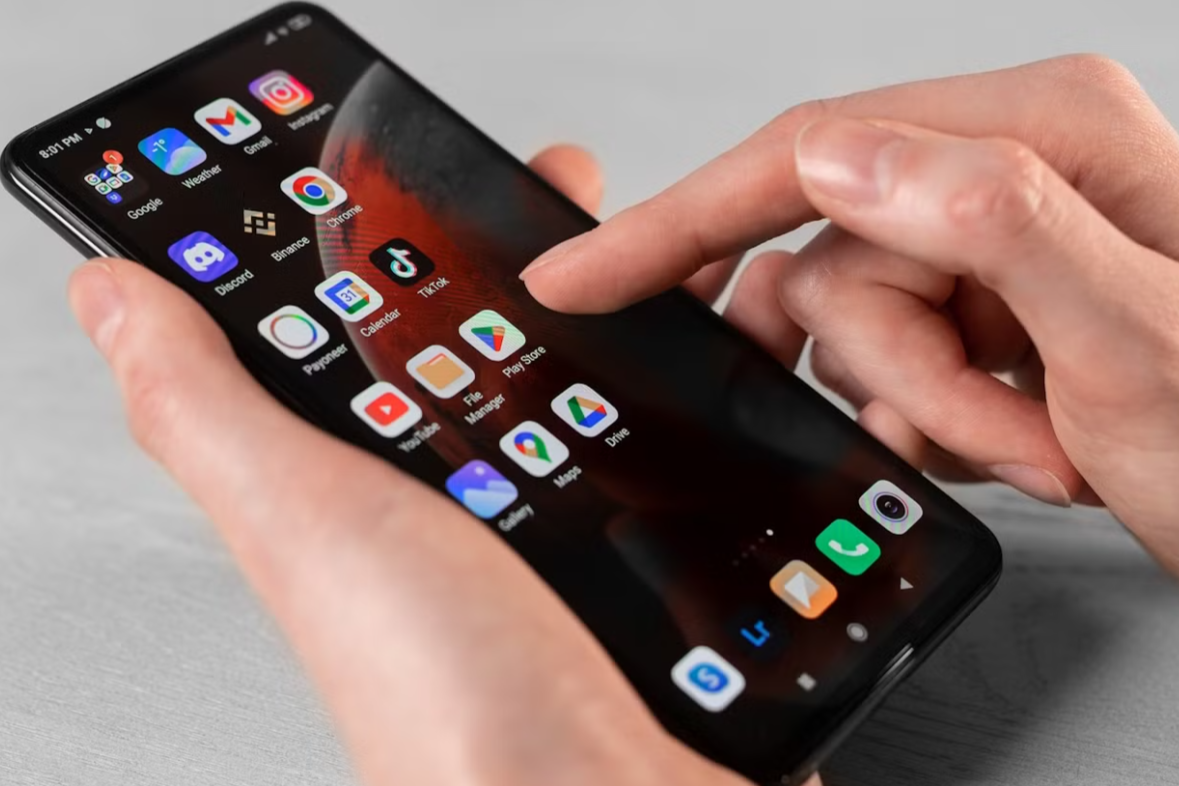
Ever feel like your phone is lagging, slowing down, or draining battery way too fast? Often, the cause isn’t obvious—it’s apps quietly running in the background. The good news? You can stop them easily and make your phone faster and last longer. Let’s dive into how you can take control using simple steps.
Why Background Apps Matter
Apps running behind the scenes can eat up battery, slow down your device, and even hog memory (RAM). Stopping or limiting them helps your phone work better and stay charged longer.
Check Which Apps Are Running
Here’s how to see what’s going on behind the scenes:
- Open Developer Options (hidden settings for power users):
- Open Settings.
- Go to About phone.
- Find Build number and tap it 7 times—you’ll get a message saying, “You’re now a developer!”
- Return to Settings, go into Developer options, then tap Running services to see active apps and how much RAM they use.
Quick Ways to Stop Background Apps
A. Force-Stop an App
- Go to Settings > Apps (or App Management).
- Choose the app you want to stop.
- Tap Force stop, then OK. This stops the app until you open it again.
B. Restrict Battery Access
- In Settings > Apps, tap an app, then go to Battery or App battery usage.
- Choose Restricted or turn off Allow background usage. This helps save battery but may affect updates or notifications.
C. Turn On Adaptive Battery
- Go to Settings > Battery.
- Tap Background usage limits and turn on Adaptive Battery.
- Your phone learns which apps you use often and limits the others.
Extra Tips to Help Your Phone Run Better
- Pause unused apps automatically: Find Unused app settings in app details and enable Pause app activity if unused.
- Disable mobile data in apps: Long-press an app and go to App info > Mobile data, then turn off background data.
- Use phone optimization tools: Samsung phones have a “Battery and Device Care” option that can close background apps, clean memory, and free storage.
- Enable Deep Sleep mode on Samsung: Go to Settings > Battery and Device Care > Battery > Background Usage Limits. Apps set to Deep Sleeping won’t run unless you open them—great for saving power.
Real-World Example
Think of your phone like a school backpack. If you carry too many books (apps) you aren’t using that day, it gets heavy and slows you down. If you only keep today’s books and put the rest away (stop background apps), your backpack (phone) is lighter and easier to carry (faster and lasts longer).
Smart Reminders
Android usually manages memory well on its own—automatically closing apps that haven’t been used in a while. You don’t always need to force-stop them.
Sometimes stopping apps helps—especially if a badly coded app is draining battery or hogging RAM.
Frequently Asked Questions
Q: Will forcing an app to stop make it disappear?
Nope. It will just stop running for now. If you reopen it, it’ll start again.
Q: Will restricting battery use stop notifications?
Yes, restricted apps may miss updates or alerts until you open them.
Q: Is Adaptive Battery safe for all phones?
Yes! It’s smart, automatic, and based on your usage—no need to update apps manually.
Q: What if an app keeps restarting?
Try battery restriction, data restriction, or uninstall if you don’t really need it.
Q: Should I keep background apps always stopped?
Not always. Some apps need to run to send messages, alarms, or updates. Be selective.
Action Plan
Your Android phone can work faster and last longer by managing apps running in the background. Here’s what to do now:
- Open Developer Options and check Running Services.
- Use Force Stop and Battery Restrictions wisely.
- Turn on Adaptive Battery for hands-free optimization.
- Use extra tools like data limits, sleep modes, or device care if available.
- Clean up unused apps and keep things tidy.
Try these steps today and notice how much smoother and longer your phone battery performs!
Take charge of your Android—stop unnecessary background apps, speed things up, and power through your day with a device that keeps up with you.
