Close Menu

    Subscribe to Updates

    Get the latest creative news from FooBar about art, design and business.

    What's Hot

    99WIN Online Games: Popular Entertainment Choices for Players Seeking Variety

    August 21, 2026

    Phtaya: A Look at Its Digital Entertainment Options 

    August 20, 2026

    Where Every Reel Has a Blueprint: How Slot Casino Games Are Designed

    August 19, 2026
    Facebook X (Twitter) Instagram
    • Privacy Policy
    • Disclaimer
    • Terms and Conditions
    Facebook X (Twitter) Instagram Pinterest VKontakte
    GeekMill
    • Technology
    • Apps
    • Artificial Intelligence
    • Computers
    • Gadgets
    • Gaming
    • Make Money Online
    GeekMill
    Home»Blog»How to Speed Up Windows 11 – Boost Your PC Performance in 2025
    Blog

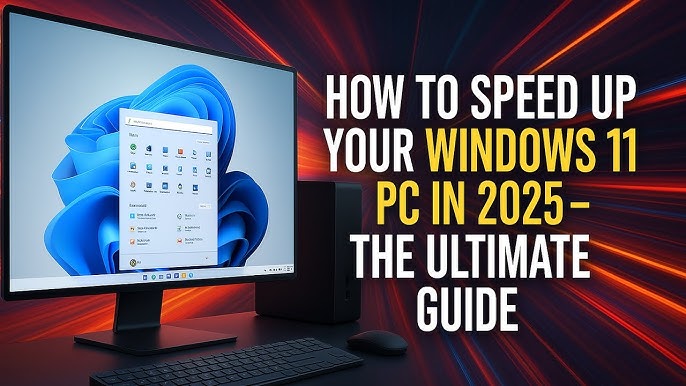
    How to Speed Up Windows 11 – Boost Your PC Performance in 2025

    Editorial TeamBy Editorial TeamJuly 29, 2025
    Facebook Twitter Pinterest LinkedIn Tumblr Email
    Share
    Facebook Twitter LinkedIn Pinterest Email

    Windows 11 is sleek and powerful, but it can start to lag over time due to background processes, startup programs, and storage issues. Whether you’re a student or professional, learning how to speed up Windows 11 can save time and improve productivity. Here’s how to do it without buying new hardware.

    1. Disable Startup Apps

    Go to Task Manager, open the Startup tab, and disable apps you don’t need on boot. This includes services like Spotify, Teams, and Skype.

    2. Clean Up Storage

    3. Go to Settings > System > Storage and turn on Storage Sense to manage your disk space automatically.

    . It automatically removes junk files and temp data. You can also manually clear browser cache and download folders.

    3. Turn Off Animations

    Navigate to Advanced System Settings > Performance and choose “Adjust for best performance” to disable visual effects.

    4. Remove Unwanted Programs

    Uninstall apps you don’t use by going to Settings > Apps. Remove bloatware like preinstalled games or antivirus trials.

    5. Run Disk Cleanup

    Search for Disk Cleanup in the Start menu. Check all boxes and clear temporary files, thumbnails, and system logs.

    6. Scan for Viruses

    Run a full system scan using Windows Defender or Malwarebytes. Hidden viruses or spyware may be using up your system resources without you knowing.

    7. Update Drivers and Windows

    Open Windows Update and check for any available updates. Outdated drivers—especially for your GPU and network—can significantly reduce your computer’s performance.

    .

    8. Upgrade to SSD if Possible

    If you’re still on a hard drive, moving to an SSD will drastically improve boot time, app loading, and overall responsiveness.

    9. Expand Virtual Memory

    Increase the paging file size by going to System Properties > Advanced > Performance Settings > Virtual Memory.

    Final Thoughts

    Learning how to speed up Windows 11 is essential for keeping your system running efficiently. These methods are free, easy, and can be applied in less than 30 minutes

    Share. Facebook Twitter Pinterest LinkedIn Tumblr Email
    Editorial Team

    Related Posts

    99WIN Online Games: Popular Entertainment Choices for Players Seeking Variety

    August 21, 2026

    Phtaya: A Look at Its Digital Entertainment Options 

    August 20, 2026

    Where Every Reel Has a Blueprint: How Slot Casino Games Are Designed

    August 19, 2026

    Go88 là một nền tảng giải trí trực tuyến hiện đại, ngày càng thu hút số đông người chơi nhờ vào những tính năng nổi bật và dịch vụ chơi game đỉnh cao

    August 18, 2026
    Add A Comment
    Leave A Reply Cancel Reply

    Related Posts

    99WIN Online Games: Popular Entertainment Choices for Players Seeking Variety

    By Alfa Team

    Phtaya: A Look at Its Digital Entertainment Options 

    By Alfa Team

    Where Every Reel Has a Blueprint: How Slot Casino Games Are Designed

    By Alfa Team
    Latest Posts

    99WIN Online Games: Popular Entertainment Choices for Players Seeking Variety

    August 21, 2026

    Phtaya: A Look at Its Digital Entertainment Options 

    August 20, 2026

    Where Every Reel Has a Blueprint: How Slot Casino Games Are Designed

    August 19, 2026

    Go88 là một nền tảng giải trí trực tuyến hiện đại, ngày càng thu hút số đông người chơi nhờ vào những tính năng nổi bật và dịch vụ chơi game đỉnh cao

    August 18, 2026
    About Us

    GeekMill.com is a tech and AI blog delivering fresh takes on the latest trends and tools.
    From AI breakthroughs to coding tips, we break down complex topics into simple reads.
    Join a growing community of curious minds and stay ahead in the digital age.

    Related Posts
    • 99WIN Online Games: Popular Entertainment Choices for Players Seeking Variety
    • Phtaya: A Look at Its Digital Entertainment Options 
    • Where Every Reel Has a Blueprint: How Slot Casino Games Are Designed
    Get it Touch

    Have questions or ideas? Get in touch—we’d love to hear from you!

    Email: teclayers[@]gmail.com

    Address: 425 Market Street, Suite 900, San Francisco, CA 94105, USA

    | xem bóng đá | xoilactv | xem trực tiếp bóng đá | xôi lạc tv | xoilactv | cakhiatv | cakhia | cakhia | 90 phút tv | trực tiếp bóng đá | 90phut | xem bóng đá | xem bóng đá | xem bóng đá | trực tiếp bóng đá | truc tiep bong da | https://tructiepbongda.mobile/ | cakhia trực tiếp bóng đá | bóng đá trực tuyến | xoilac | jun88 | new88 | เว็บสล็อต | sunwin | สล็อต | go88 | hitclub | หวยออนไลน์ | betflix | ufa | แทงบอล | แทงบอล

    Facebook Instagram Pinterest YouTube
    • Home
    • Privacy Policy
    • About Us
    • Disclaimer
    • Terms and Conditions
    • Contact Us
    © 2026 GeekMill | All Rights Reserved

    Type above and press Enter to search. Press Esc to cancel.